
It did not occur to me at the time I purchased my iPhone that the screen recording feature is that useful. I bought my iPhone in the official online store of Apple as it was more trustworthy, had AppleCare warranty, and offered very quick delivery. My decision to directly purchase an Apple product was very straightforward. I just needed an authentic device that I was sure would be supported in case of failure.
The first functionality I learned about as I started innovating with it is that of screen recording, which I did not at first regard so seriously, but then I realized it was one of the most effective in my everyday life. It turned into a necessary functionality when it comes to recording gameplay and recording tutorial steps to present them to my colleagues.
Initially, I was facing the same issue many users use the internet asking: How do I enable screen recording on my iPhone? or Why can I not find the How to Record screen in the iPhone record button on my iPhone? I have tried it and have even conducted some research before I got it figured out. I will present my personal experience on how I was able to learn to screen record, what worked best with me and some of the advantages and disadvantages to this feature in this article. In case you have ever questioned yourself on how to screen record on iPhone, this tutorial will provide you with the answers.
Discovering the Screen Recording Feature on iPhone
The initial occasion when I had to make a recording on my screen was when I was attempting to videotape an instance of a video call with a friend, who was demonstrating a new application to me. I did not know how, so I read online about it and found the CNET video on how to record screens on the iPhone. This made me understand that screen recording does not turn on automatically; it must be added into the Control Center.
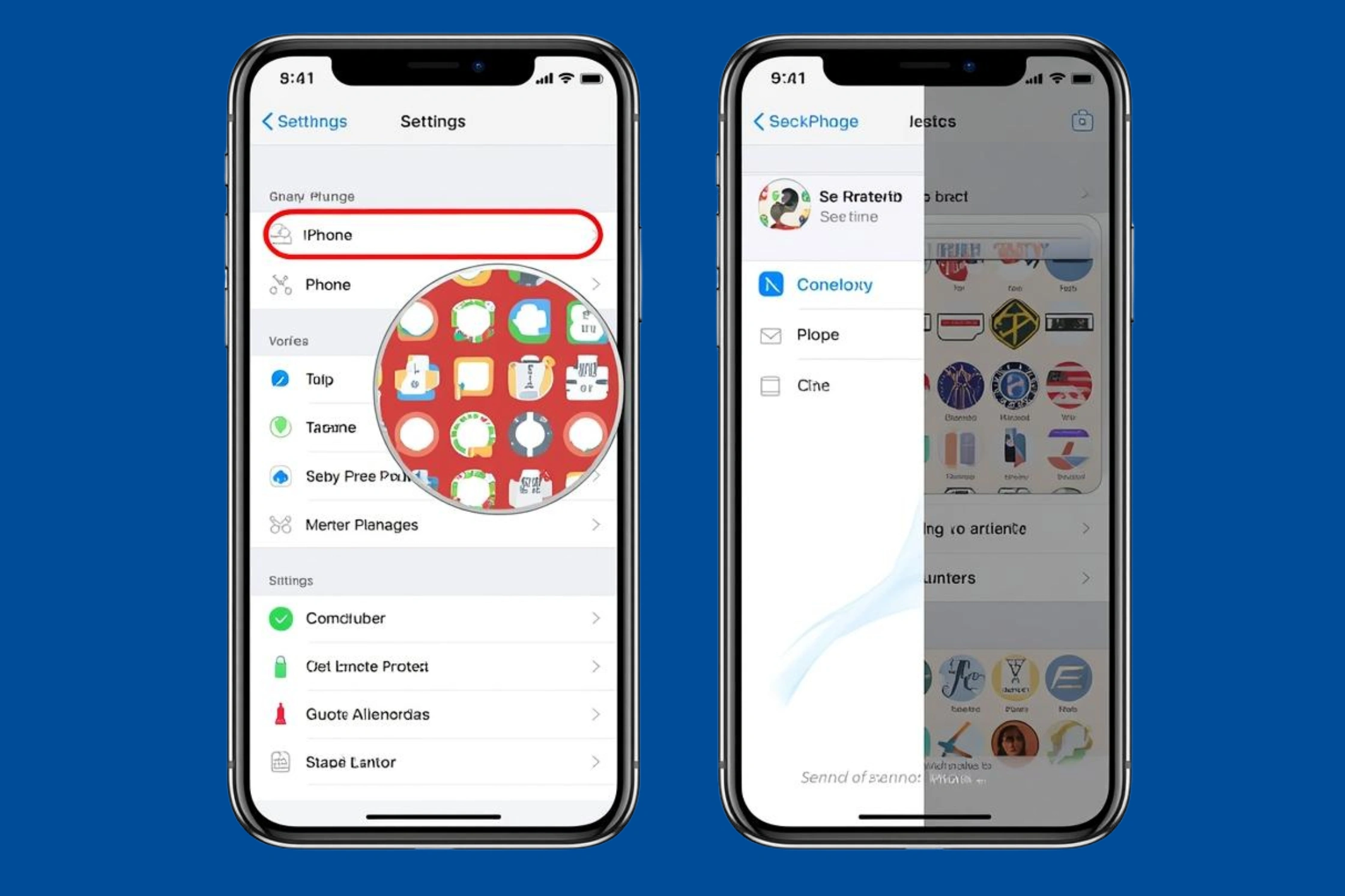
To enable it, I went to the settings control center and under customized controls I added screen recording. After this, the record button was shown every time I swiped the screen down at the top-right corner. I just tapped on the icon and a 3-sec countdown started the screen recording. It was as easy to stop it by tapping the red bar at the top.
This was a ground-breaking discovery. It convinced me that the iPhone 14 pro max has not only an easy but also powerful screen recording. It does not require third-party applications, and this makes it a lot safer. There are even sites, such as Asurion, that explain that this is a great feature as it can record tutorials, presentations or even gameplay without any additional software.
Why Screen Recording on iPhone Became Essential for Me
I learnt to screen records, and I started using it in other ways. At work, I was used to explaining technical procedures to my colleagues, and rather than typing the long procedures, I could simply screen record the process and walk them through. On the same note, when playing, I would do some screen recording to show my friends my successes.
However, one of the most important reasons I have found it helpful is in troubleshooting. There was a time when my iphone was having some problems with an application and rather than attempt to clarify directly to the support about the problem, I simply made a screen recording of the problem and sent the video. That made the resolution a lot faster.
I more recently discovered the guide by CapCut that also recommended creating content by recording to the screen, particularly when you wish to produce tutorials or guides on social media. This served as an eye opener to me because I knew that I could even use this feature to produce professional videos.
Pros and Cons of Using Screen Recording on iPhone
Screen recording, as any other feature, also possesses advantages and disadvantages. Months into using it, the following are the things that I observed:
Pros:
- Installed and free: There is no requirement of third-party applications.
- Simple to use: Only a swipe and a tap.
- Good recording: The videos are smooth and clear.
- Audio: You can add audio of a microphone in case it is necessary.
- Safe and secure: As it is a native Apple feature, it is safer.
Cons:
- Space: Recording can be a high-consumption exercise.
- Battery life: Recording can consume additional battery.
- No sophisticated editing software: You will have to use other programs to edit recordings.
- Blockage of certain apps: Some apps (such as Netflix) block screen recording because of copyright.
Despite these shortcomings, I was amazed by the feature. I have a pocket screen tutorial machine.
Step-by-Step Guide: How to Screen Record on iPhone
I mastered my steps through experimentation. I do it now in the following way, and it works all the time:
Enable the Feature
- Go to Settings.
- Tap Control Center.
- Add Screen Recording.
- Start Recording
Drag down at the upper right
- Click the record (circle within a circle) icon.
- A 3-second countdown begins.
- Stop Recording
Click the red bar on the top of the screen
- Or tap the record button on Or open Control Center and tap again.
- Find the Recording
- JSot Photos App where your recording is saved automatically.
Another thing I learned on the How to iPhone photo iOS 16 help guide on Egnyte is that you can set up settings to record or not to record the audio of the microphone. It is wonderful when you are creating tutorials and need to record a narration.
My Experience and Final Thoughts on Screen Recording
The screen recording ability of the iPhone has entirely altered my working and content sharing process. First, I purchased the iPhone due to the great ecosystem, however, I did not anticipate such a basic feature to have such a significant influence. Screen recording is a potent tool that I have now been using nearly every day, whether it is teaching somebody, putting together a piece of content, or simply saving personal memories.
I would advise all the iPhone users to use it. In case you cannot find the option, then you should not worry that it is not yet included into your Control Center. When it is provided it becomes second nature. It has been one of the most underestimated yet useful aspects of my iPhone to me.
Conclusion
The iPhone has an easy and efficient way of recording the screen. It assists in countless ways, whether it comes to tutorials, troubleshooting, content creation, etc. Although there are slight disadvantages, the advantages of doing so far surpass the disadvantages. Having been wondering how to screen record on iphone, you now know what and why to use it.