
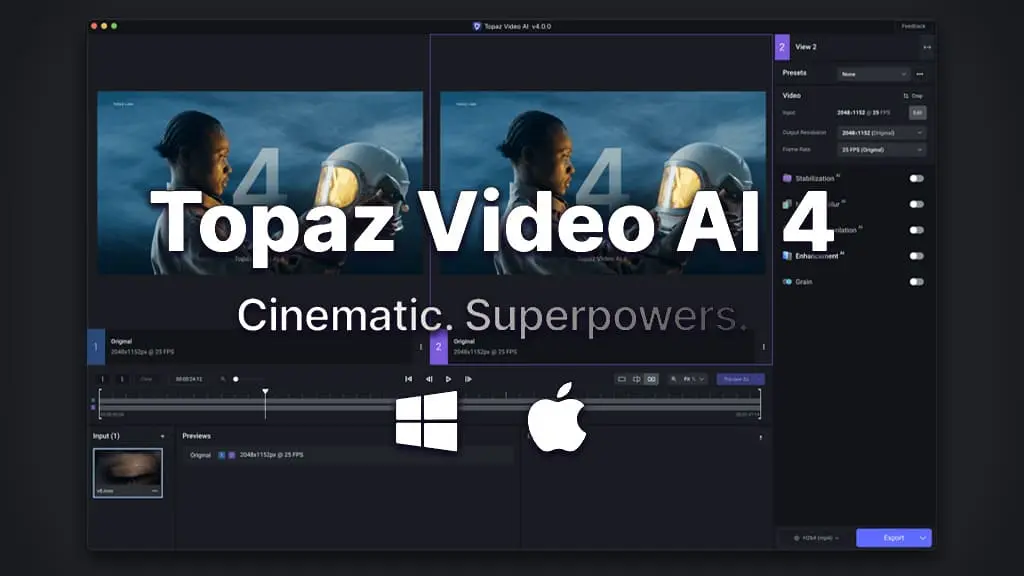
Topaz Video AI is one of the most advanced tools for improving video quality using artificial intelligence. Whether you want to upscale 1080p to 4K, restore old footage, reduce noise, or increase frame rate, Topaz makes it simple. This guide explains how to use Topaz Video AI effectively for smooth, high-quality results.
What is Topaz Video AI and Why Creators Use It?
Topaz Video AI is a professional video enhancement software built with machine learning. Unlike typical editors, it uses neural networks to analyze video frames and rebuild details rather than just stretching pixels. This is why it’s loved by filmmakers, YouTubers, restoration teams, and video editors who want crystal-clear output. Topaz can sharpen blurry footage, remove grain, enhance faces, boost resolution, and even turn old VHS-like clips into freshly restored HD quality. The best part? You don’t need technical editing skills Topaz automates most improvement tasks while giving users enough control for perfect adjustments.
How to Use Topaz Video AI Step by Step
Using Topaz Video AI is straightforward even for beginners. First, install and launch the software on your PC or Mac. Once the interface opens, click Browse or drag your video file into the workspace. The program will analyze it and show preview settings. Next, choose a model depending on the improvement you need like Enhance, Upscale, Stabilize, FPS Increase, or DeNoise. You can preview before processing to judge quality. Adjust resolution such as 1080p → 4K or even up to 8K if the footage allows. After selecting the enhancement mode, choose the output format (MOV, MP4, ProRes) and click Export. Topaz will start processing frame by frame using AI. Because it calculates detail, rendering may take time, especially on long videos, but the results look remarkably professional.
Best Use Cases for Topaz Video AI
Topaz shines when working with old, noisy, low-resolution clips. Many YouTubers restore family recordings, 90s video tapes, documentary archives, or vintage films using this software. AI reconstruction fills missing details and reduces blur without making footage look artificial. Content creators also use Topaz to upscale videos for platforms like YouTube, where 4K content ranks higher and looks more premium. If you record gameplay or cinematic shots that appear soft, Topaz sharpens frame edges and enhances motion. Sports and slow-motion editors pair Topaz with frame interpolation, creating smooth high-FPS effects. Wedding videographers use it to fix lighting issues or bring clarity to old event footage. Its value increases even more for production houses who manage reels and advertisements requiring HD perfection.
Tips to Get the Best Results from Topaz Video AI
Topaz processing depends heavily on the right model selection. For blurry footage, the Enhance + Sharpen models work best. For noisy or grainy clips recorded in low light, use DeNoise first, then upscale. When converting 24fps to 60fps, choose Frame Interpolation, but avoid extreme motion scenes unless necessary, as excessive interpolation may create ghost frames. If your system is slow, reduce output preview resolution to speed up workflow. High-end GPUs significantly improve rendering time. Another important tip is saving output in high-bitrate formats like ProRes for maximum detail retention. You can also run stabilization if your handheld video shakes. By combining enhancement models, creators can achieve near-cinematic results even from low-quality footage.
Advantages of Using Topaz Video AI
Topaz’s biggest strength is automation. Advanced restoration that once took hours in After effects or DaVinci Resolve can now be achieved with a few clicks. It’s ideal for beginners and professionals alike. The AI learns details instead of guessing, so upscaled videos retain clarity instead of becoming pixelated. Noise reduction is smooth, not waxy. Facial textures remain real. The software also handles motion well, preserving sharpness even in fast-moving sports or action videos. File export flexibility makes it suitable for editing workflow integration. Most importantly, Topaz upgrades old footage instead of replacing original charm, making it invaluable for documentary and memory preservation work.
Limitations and Things to Know Before Editing
While Topaz is powerful, it isn’t perfect. High-resolution enhancement requires heavy GPU usage, meaning weak computers may process slowly. The software is best for improvement, not creative editing—color grading, transitions, and cuts must be done externally. Extremely low-resolution videos sometimes produce artifacts, so adjusting settings is necessary. Interpolation may struggle with chaotic motion scenes. Users should preview results before full export to avoid long reprocessing times. Despite these points, the output quality Topaz delivers often outweighs limitations, especially when working with restoration or professional upgrades.
Conclusion
Topaz Video AI is a game-changer for anyone looking to upscale, restore, or enhance footage professionally. With simple controls and advanced AI models, beginners and experts can create sharp, clean, high-resolution videos quickly. Using the right settings, Topaz turns ordinary clips into cinematic-quality visuals with impressive clarity.
Feature Image: canonwatch.com