Phones feel simple until apps start acting weird. One app freezes, another looks outdated, and suddenly there is that thought, wait, are these apps even updated. That is usually where the question pops up, how to update apps on iPhone without messing anything up. It sounds basic, but Apple keeps changing small things with every iOS update, so the process feels different every time.
Think of it like two people chatting. One says apps need updates for security and features. The other says fine, but where exactly is the update button now. That is exactly what this guide clears up. No fluff, no long stories, just a clear and natural walk through that actually makes sense in 2026 and beyond.
How to Update Apps on iPhone Using App Store
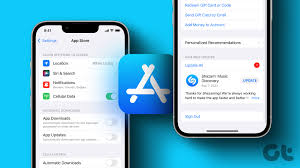
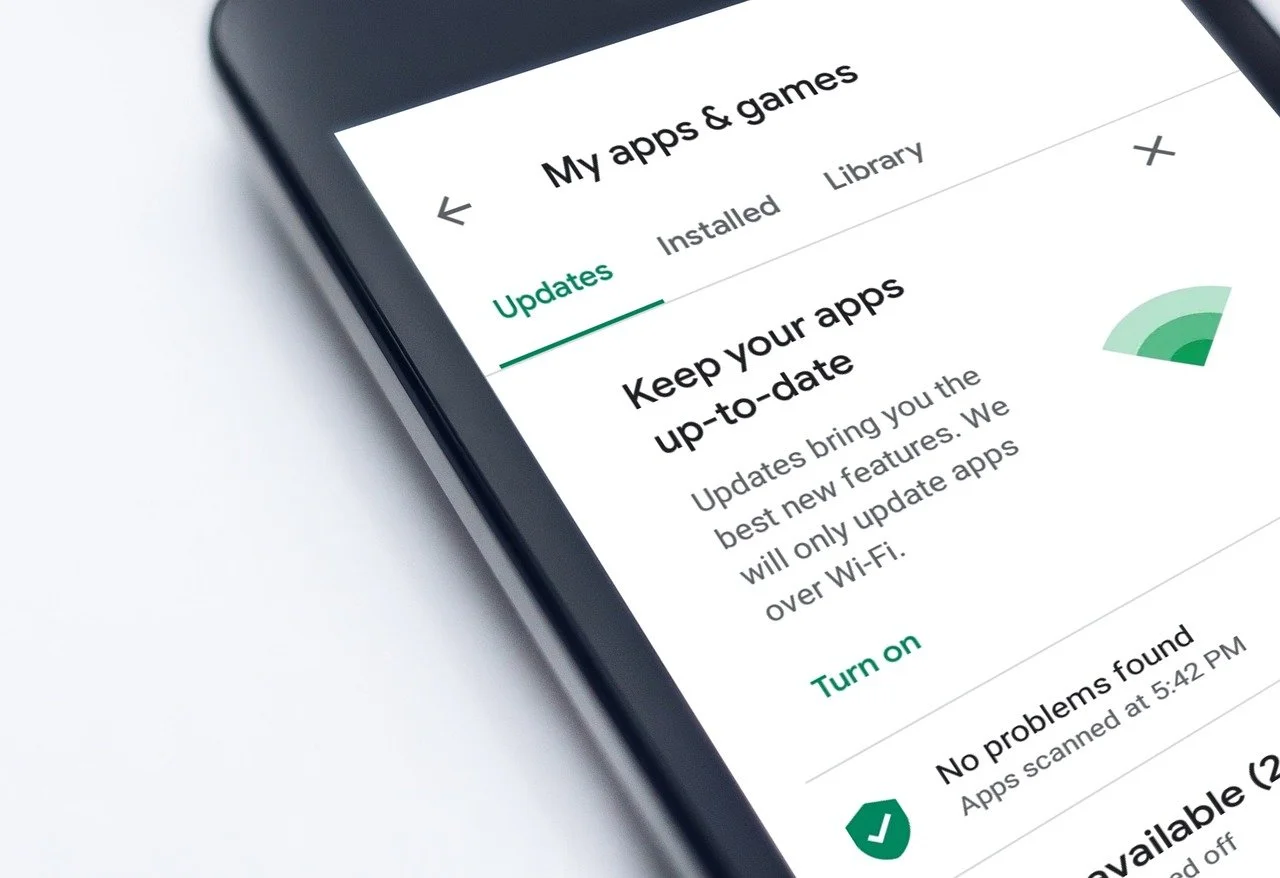
So the most common and still the most reliable way. The App Store. Apple has kept this method steady, even with newer iOS versions. Open the App Store first. Instead of searching for each app, look at the top right corner. There is the profile icon. Tap that. This is where everything lives now, updates, subscriptions, account info, all of it. Once inside, scroll a little. If updates are available, they show up instantly. You can tap Update next to a single app, or tap Update All if patience is not the mood today. That is the core answer to how to update apps on iPhone, and yes, it still works smoothly.
Turning On the Automatic App and Updates on iPhone Complete Explanation
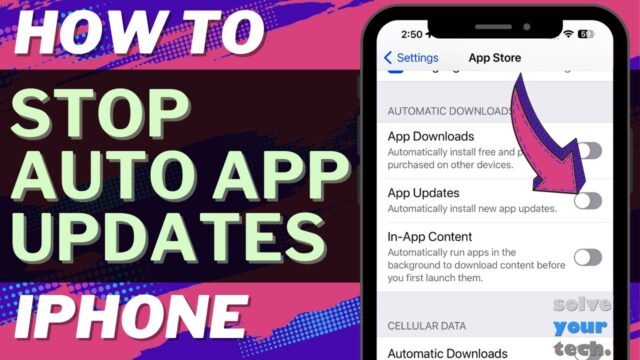
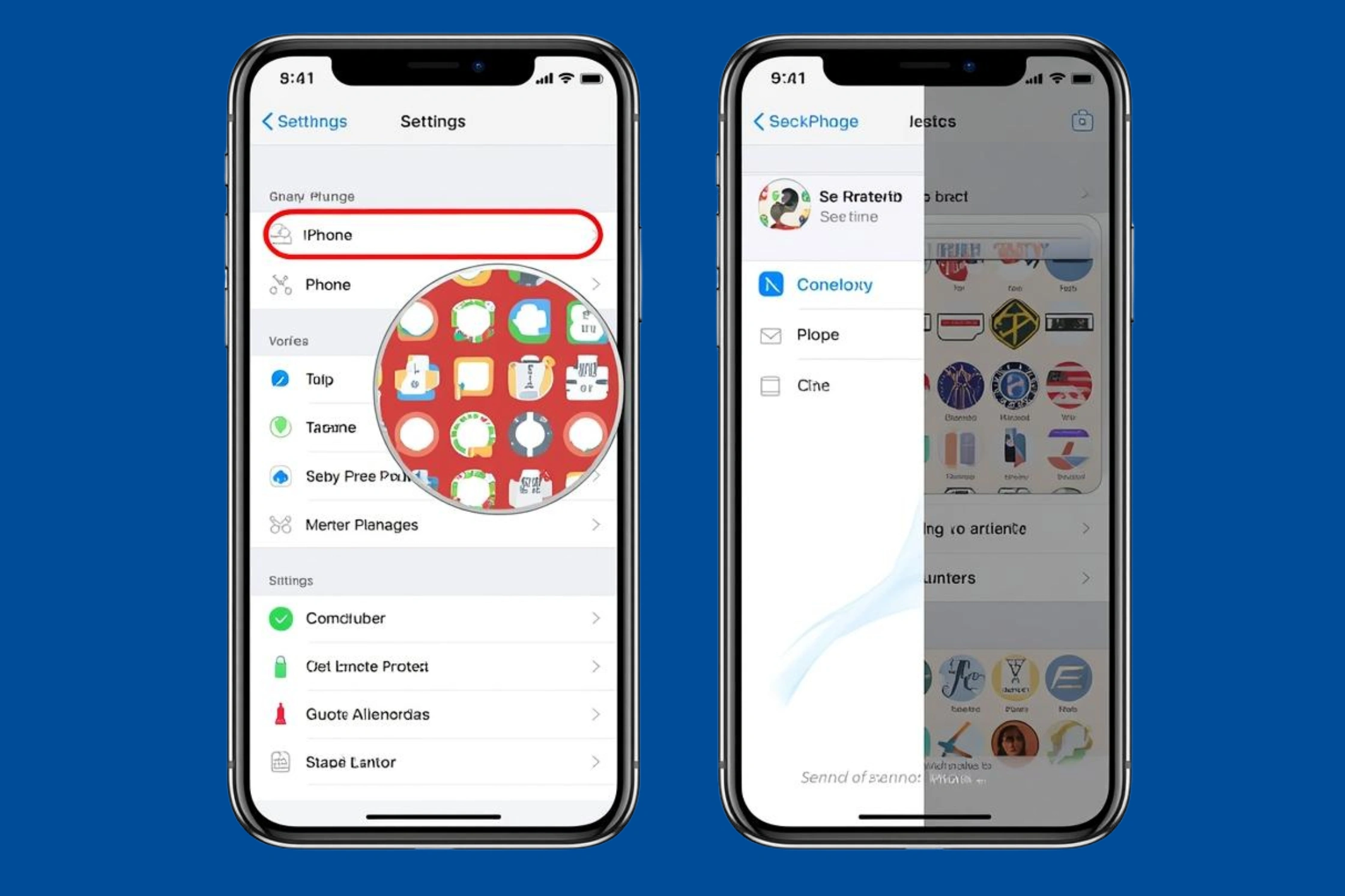
Now this is where modern habits come in. Not everyone wants to manually check updates every few days. Apple knows this, so automatic updates exist and they work quietly in the background. Go to Settings. Scroll down to App Store. Inside, look for App Updates. Toggle it on. That is it. From now on, apps update on their own when the phone is charging and connected to Wi Fi. This is often searched as automatic app updates on iPhone or how to auto update apps on iOS, and it matters because it keeps apps secure without daily effort. In newer iOS versions, Apple has optimized background updates, so battery impact stays minimal.
Why Some Apps Do Not Update Right Away and complete Guide
This is the part where confusion usually kicks in. Someone updates all apps, yet one app stays stuck. Happens a lot.
Common reasons include low storage, weak internet, or paused downloads. Sometimes the App Store just needs a refresh. Closing it and reopening usually fixes it. Restarting the iPhone also works more often than people expect.
This ties into searches like iPhone apps not updating, apps stuck on waiting iPhone, and fix app update issues on iOS, which are extremely common questions.
Updating Apps After a New iOS Update
Here is a small but important detail. After installing a new iOS version, apps often release fresh updates to match system changes. So if the phone feels slow after a system update, outdated apps are usually the reason. Open the App Store again, check updates, and update everything. This step is often overlooked, but it improves performance instantly. Many people search for update apps after iOS update, and the solution is simpler than expected.
Keeping Apps Updated for Security and Performance
This part does not need technical talk. Updated apps fix bugs, patch security issues, and unlock new features. Leaving apps outdated is like ignoring system warnings. Regular updates also help with battery optimization, smoother animations, and better compatibility with newer iPhones. That is why how to update apps on iPhone is not just a how to question, it is a phone health habit. Open App Store, tap profile icon, update apps. Enable automatic updates for peace of mind. Check updates after every iOS update. That is the entire loop.
Fixing App Update Problems on iPhone When Things Get Stuck
Sometimes everything looks right, strong internet, enough storage, updated iOS, and still the app refuses to update. This is where small fixes make a big difference.
Check Internet Connection Before Anything Else
App updates rely heavily on a stable connection. Even if Wi Fi looks connected, it might be slow or unstable. Switching Wi Fi off and back on often resets the connection. If that does not help, switching temporarily to mobile data can push the update through. Large apps especially need a steady connection. If the download keeps pausing, the internet is usually the quiet reason behind it.
Free Up Storage to Let Updates Complete
iPhones need extra space to update apps, even small ones. When storage runs low, updates fail silently.
Opening Settings, then General, then iPhone Storage shows what is taking space. Deleting unused apps, old screenshots, or cached files often clears enough room. Once storage frees up, app updates usually resume without further effort.
Restart the iPhone to Refresh Everything
This step sounds basic, but it works more often than expected. A restart clears background glitches that can block app updates. After restarting, opening the App Store and checking updates again often solves the issue immediately. Many update problems disappear after a simple reboot.
Sign Out and Back Into the App Store
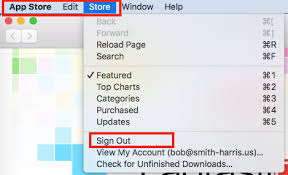
If updates still refuse to move, signing out of the App Store can help. Go to Settings, tap the Apple ID at the top, scroll down, and sign out. Restart the phone, then sign back in. This refreshes account connections and fixes update issues tied to App Store syncing.
When Nothing Works, Wait It Out
Sometimes the issue is not the phone at all. App Store servers occasionally slow down or glitch, especially after major iOS releases. In those cases, waiting a little while is the only fix. Checking again later often shows the updates downloading normally, without any changes made.
Conclusion
Honestly, updating apps on iPhone is so simple than it looks. You just have to open the App Store, tap your profile, scroll a bit, and click Update or Update All. Boom! done. Or better yet, turn on automatic updates and forget about it entirely. Apps just update themselves while you’re doing literally anything else. It keeps everything smooth, no random crashes, no weird bugs popping up. Learning how to update apps on iPhone is one of those things that saves a ton of headaches later.
Frequently Asked Questions
Q: How do I update apps on iPhone manually?
Answer: Open the App Store, tap that little profile icon, scroll to see updates, and tap Update or Update All. Easy, no fuss.
Q: My apps won’t update, what’s going on?
Answer: Usually it’s storage, slow Wi Fi, or the App Store acting up. Try restarting your phone, freeing a bit of space, or switching Wi Fi off and on. Works more often than you think.
Q: Can iPhone apps update automatically?
Answer: Totally. Go to Settings → App Store → App Updates and flip it on. After that, apps update quietly on their own when you’re charging and on Wi Fi. Stress-free.
Q: Should I update apps after a new iOS update?
Answer: Yup. Many apps push updates after iOS changes to stay compatible. Do it and the phone feels smoother, apps run better, and random glitches disappear.
Q: Can I update apps over mobile data?
Answer: Sure, it works. Just watch out, big apps gobble data fast. Wi Fi is the safer choice, especially if you’re updating a bunch at once.