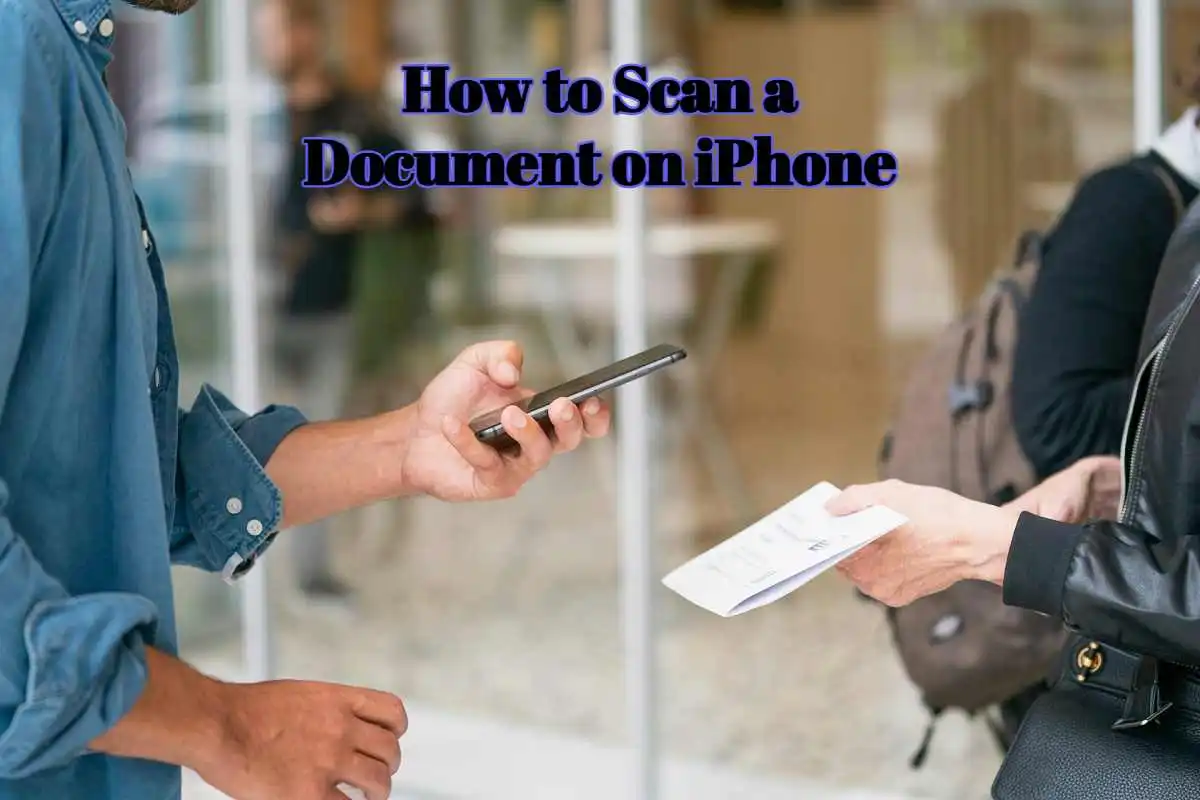
So here is the thing, paper documents are still everywhere. Bills, ID cards, signed forms, handwritten notes, all of it. And then comes that moment when someone says, “Just scan it and send it.” No scanner nearby, no stress needed either. Almost everyone already has the solution sitting in their pocket.
That is where how to scan a document on iPhone becomes a question worth answering properly. It is fast, built in, and surprisingly good. No extra apps, no complicated steps, no tech headache. Just a few taps and the document is ready to share, save, or upload.
People often ask, do we need a scanner app, is the camera enough, will it look professional. Short answer, yes it works, and yes it looks clean when done right. Let’s break it down step by step, starting with the most common and reliable method.
How to Scan a Document on iPhone Using the Notes App?
This is usually where the conversation starts. One person says, “Wait, you can scan from Notes?” and the other goes, “Yes, and it actually works really well.”
Apple quietly built a powerful scanner inside the Notes app, and most users never notice it. If the goal is scan documents with iPhone, this is the easiest and most trusted way.
Open the Notes app, tap the new note icon, then tap the camera icon. From there, choose “Scan Documents.” The camera opens, the document gets detected automatically, and the edges snap into place. No need to hold perfectly still, the iPhone does most of the thinking.
Once the scan is captured, it can be adjusted. Crop it, change color modes, turn it into black and white, sharpen the text. This part matters because clean scans look more professional, especially when scanning documents on iPhone for work, school, or official use. After that, save it directly in Notes or share it as a PDF. This is why people searching for how to scan a document on iPhone usually end up sticking with this method. It is simple, fast, and already there.
What makes it even better is how natural it feels. No learning curve, no ads, no permissions drama. Just open, scan, save, done. And yes, this works for receipts, contracts, handwritten pages, even old printed forms. As long as the lighting is decent, the iPhone document scanner handles it smoothly.
In the next part, the discussion usually shifts to alternatives, like using the Files app, the camera itself, or third party apps for advanced needs. That is where things get even more interesting.
Other Easy Ways to Scan Documents on iPhone
Sometimes the Notes app is not the first thing that comes to mind. That is when people start asking, “Is there another way?” The answer is yes, and honestly, these options are just as handy depending on the situation.
Using the Files App for Quick PDF Scans
This one surprises a lot of people. The Files app is not just for storage, it also works as a solid document scanner on iPhone.
Open the Files app, tap the three dots in the top corner, then choose “Scan Documents.” The experience feels very similar to Notes. The camera opens, the document is detected automatically, and the scan is saved directly as a PDF.
This method is great when the goal is scan documents on iPhone and save as PDF right away. No extra steps, no moving files around later. Everything stays neatly stored in iCloud or on the device.
People who manage work files often prefer this because it keeps things organized from the start. And when someone asks again about how to scan a document on iPhone, this option usually comes up as the cleanest workflow.
Can the iPhone Camera Be Used as a Scanner?
This question pops up a lot. Technically yes, but it comes with a small catch.
Using the Camera app alone means taking a photo, then editing it manually. Cropping, adjusting brightness, fixing perspective, all of that takes extra time. It works in emergencies, but it is not the smartest way to scan documents with iPhone when better tools already exist.
The built in scanner does the thinking for us. It detects edges, straightens pages, and enhances text automatically. That is why most people eventually move away from plain camera photos and stick to proper iPhone document scanning features.
Third Party Scanner Apps, When Are They Worth It
Now this is where opinions differ. Some say built in tools are enough, others swear by apps. Third party apps can help when advanced features are needed. Things like OCR text extraction, batch scanning, cloud integrations, or signing documents directly. Apps like Adobe Scan or Microsoft Lens are popular for this reason.
But for everyday needs, invoices, forms, IDs, homework, receipts, the native options usually win. They are fast, clean, and already trusted. That is why most searches around how to scan a document on iPhone end right there. At the end of the day, it comes down to how often scanning is needed. For regular users, the built in tools feel more than enough. For power users, extra apps can add flexibility.
Conclusion
So when it comes down to it, how to scan a document on iPhone is no longer a confusing thing or a hidden trick. It is simple, built in, and designed to feel natural. Whether it is the Notes app or the Files app, the iPhone already works like a pocket scanner without needing extra tools.
The real win here is convenience. Documents get scanned, cleaned, saved, and shared in minutes. No machines, no cables, no learning curve. Once someone uses it once, it usually becomes the default way to scan documents on iPhone for everything, from quick receipts to important paperwork. And that is why this feature quietly fits into daily life. It just works when needed, which is exactly what most people want.
Frequently Asked Questions
Q: How to scan a document on iPhone without downloading an app?
Answer: The easiest way is using the built in Notes app or Files app. Both have a scanner feature that lets users scan documents with iPhone directly and save them as PDFs without installing anything extra.
Q: Can scanned documents on iPhone be saved as PDF?
Answer: Yes, every scan created through Notes or Files is automatically saved as a PDF. This makes iPhone document scanning suitable for sharing, printing, or uploading to official platforms.
Q: Does scanning on iPhone work without internet?
Answer: Yes, the scanning feature works completely offline. Internet is only needed if the file is being uploaded or shared online. The core document scanner on iPhone works anytime.
Q: Are iPhone scanned documents clear enough for official use?
Answer: In most cases, yes. With proper lighting and flat placement, scanned files are sharp and readable. Many people use scanning documents on iPhone for forms, IDs, and business paperwork.
Q: Which is better, Notes app or Files app for scanning?
Answer: Both are reliable. Notes is great for quick scans and edits, while Files is better when the goal is scan documents on iPhone and save as PDF directly into folders. It depends on how organized the files need to be.
Q: Can multiple pages be scanned into one document?
Answer: Yes, both built in scanners allow multiple pages to be added into a single scan. This is especially helpful when learning how to scan a document on iPhone for contracts or multi page forms.
Q: Is the iPhone scanner free to use?
Answer: Yes, the built in scanner is completely free and included with iOS. No subscriptions, no hidden charges, just a simple way to scan documents on iPhone whenever needed.