Phones slow down. Apps start acting weird. Storage full even when nothing new was added. That is usually the moment when this question pops up, how to clear cache on iPhone and whether it actually helps. One person says it fixes everything, another says iPhones do it automatically. So what is really true here. The answer sits somewhere in between, and clearing cache can genuinely make a difference when done the right way.
between, and clearing cache can genuinely make a difference when done the right way. Before jumping into steps, it helps to understand what cache actually is and why iPhones handle it a little differently than other devices.
How to Clear Cache on iPhone and Why It Matters
When people talk about how to clear cache on iPhone, they are usually talking about temporary data stored by apps and browsers. This data helps things load faster, like images, website files, and app preferences. Sounds useful, right. It is, until it builds up too much.
Imagine one person saying, “My Safari feels slow,” and the other replying, “That is probably cached website data.” That is exactly how it works. Over time, cached files pile up and can cause issues like slow browsing, apps crashing, or storage warnings.
Unlike Android, iOS does not have a single clear cache button. Apple keeps things controlled, but that does not mean cache cannot be cleared. It just means the approach is different. Clearing iPhone cache storage, Safari cache, or app cache on iPhone depends on what exactly is causing the problem.
This is why people often search for things like clear Safari cache on iPhone, how to clear app cache on iPhone, or even free up storage on iPhone. All of these connect back to the same idea, removing unnecessary temporary data so the phone can breathe again.
Understanding this first makes the rest much easier. Once it is clear what cache does and why it matters, the steps feel logical instead of confusing. And yes, when done properly, clearing cache can improve performance without deleting important data.
Different Ways to Clear Cache on iPhone Without Stress
Alright, now comes the practical part. This is where one person says, So how do we actually do it, and the other calmly walks through it. There is no single button, but there are a few reliable ways to clear cache depending on where the clutter is sitting.
Clearing Safari Cache and Website Data
If Safari feels heavy or pages take longer to load, this is usually the first place to start. Safari stores website files, images, and history to speed things up, but over time it becomes too much.
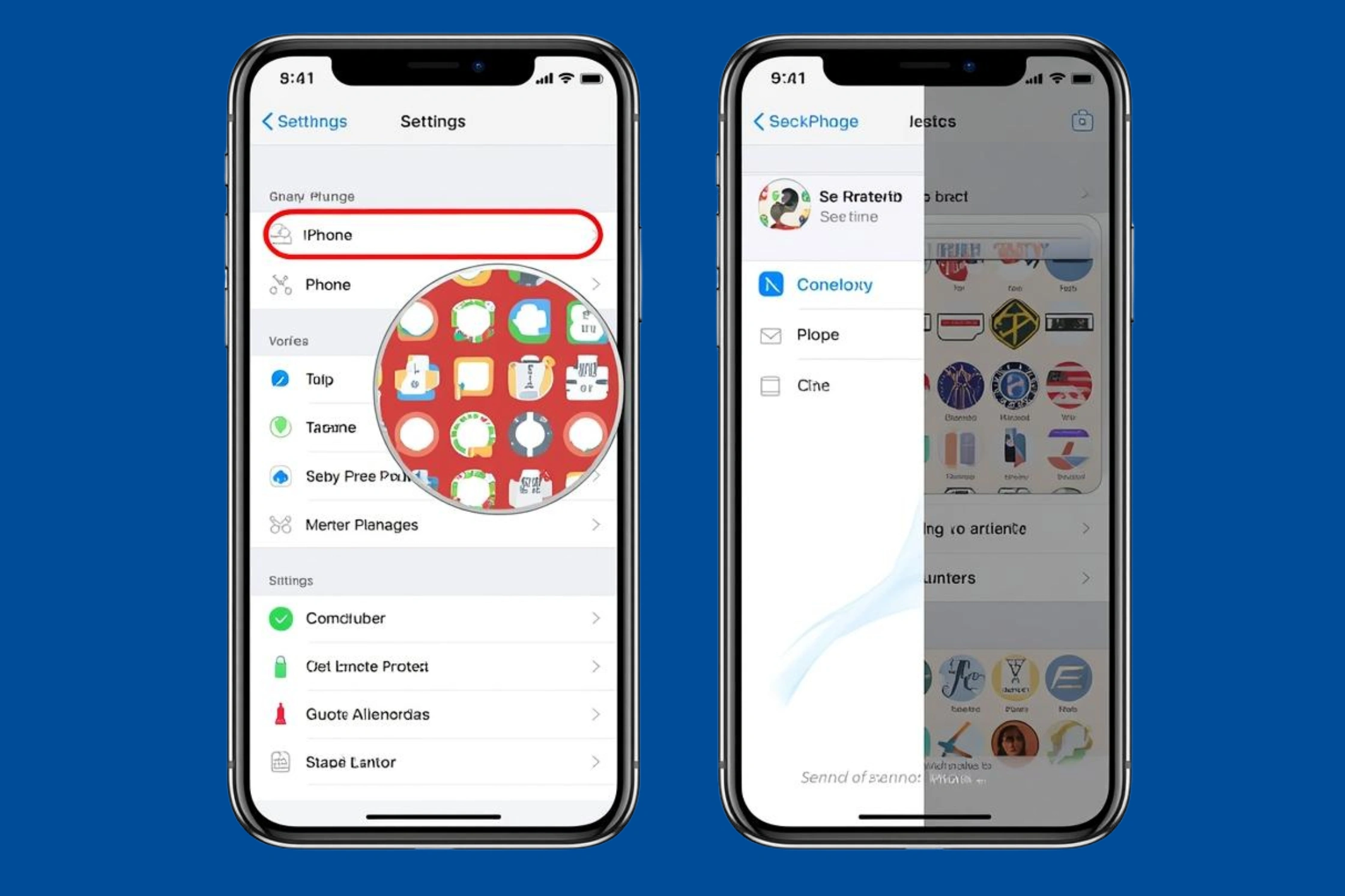
Go to Settings, scroll to Safari, then tap Clear History and Website Data. That one tap clears Safari cache on iPhone, browsing history, and cookies. It does not remove saved passwords or bookmarks, which is a relief for most people.
This step alone often fixes laggy scrolling and loading issues and helps free up storage on iPhone quietly in the background.
Clearing App Cache Without Deleting Everything
Now apps are a bit tricky. iOS does not allow a universal clear cache option, but there is still a clean way around it. For apps like social media, streaming, or shopping apps, cached files grow fast.
Phones slow down. Apps start acting weird. Storage full even when nothing new was added. That is usually the moment when this question pops up, how to clear cache on iPhone and whether it actually helps. One person says it fixes everything, another says iPhones do it automatically. So what is really true here. The answer sits somewhere in between, and clearing cache can genuinely make a difference when done the right way.
between, and clearing cache can genuinely make a difference when done the right way. Before jumping into steps, it helps to understand what cache actually is and why iPhones handle it a little differently than other devices.
How to Clear Cache on iPhone and Why It Matters
When people talk about how to clear cache on iPhone, they are usually talking about temporary data stored by apps and browsers. This data helps things load faster, like images, website files, and app preferences. Sounds useful, right. It is, until it builds up too much.
Imagine one person saying, “My Safari feels slow,” and the other replying, “That is probably cached website data.” That is exactly how it works. Over time, cached files pile up and can cause issues like slow browsing, apps crashing, or storage warnings.
Unlike Android, iOS does not have a single clear cache button. Apple keeps things controlled, but that does not mean cache cannot be cleared. It just means the approach is different. Clearing iPhone cache storage, Safari cache, or app cache on iPhone depends on what exactly is causing the problem.
This is why people often search for things like clear Safari cache on iPhone, how to clear app cache on iPhone, or even free up storage on iPhone. All of these connect back to the same idea, removing unnecessary temporary data so the phone can breathe again.
Understanding this first makes the rest much easier. Once it is clear what cache does and why it matters, the steps feel logical instead of confusing. And yes, when done properly, clearing cache can improve performance without deleting important data.
Different Ways to Clear Cache on iPhone Without Stress
Alright, now comes the practical part. This is where one person says, So how do we actually do it, and the other calmly walks through it. There is no single button, but there are a few reliable ways to clear cache depending on where the clutter is sitting.
Clearing Safari Cache and Website Data
If Safari feels heavy or pages take longer to load, this is usually the first place to start. Safari stores website files, images, and history to speed things up, but over time it becomes too much.
Go to Settings, scroll to Safari, then tap Clear History and Website Data. That one tap clears Safari cache on iPhone, browsing history, and cookies. It does not remove saved passwords or bookmarks, which is a relief for most people.
This step alone often fixes laggy scrolling and loading issues and helps free up storage on iPhone quietly in the background.
Clearing App Cache Without Deleting Everything
Now apps are a bit tricky. iOS does not allow a universal clear cache option, but there is still a clean way around it. For apps like social media, streaming, or shopping apps, cached files grow fast. Head to Settings, then General, then iPhone Storage. Tap any app that seems unusually large. If the app offers an option to offload, use it. Offloading removes the app but keeps its data safe. Reinstalling the app clears the app cache on iPhone while restoring everything important. It feels odd at first, but it works surprisingly well.
Some apps also have their own built in cache clearing options inside settings. It is worth checking because it saves time and keeps things tidy.
Restarting the iPhone for a Quick Cleanup
This sounds too simple, but restarting the phone actually clears temporary system cache. When one person says, “It feels smoother after a restart,” they are not imagining it. Powering off the device and turning it back on refreshes background processes and clears short term cached files.
This method helps with minor glitches, overheating, and random slowdowns. It is not a full cache wipe, but it supports overall performance and keeps iPhone cache storage from piling up silently.
Each of these methods tackles a different type of cache. Together, they form a clean and safe way to handle how to clear cache on iPhone without risking important data or settings.
Conclusion
At the end of the day, cache is just extra baggage. It starts helpful, then slowly turns into the reason things feel off. One person complains the phone feels heavy, the other notices apps opening slower than usual, and both are actually talking about the same problem. Knowing how to clear cache on iPhone makes everything simpler. Nothing complicated, nothing risky. Just small cleanups that bring the phone back to normal. Do it once in a while and the iPhone behaves the way it did when it was new, smooth, calm, and not constantly asking for more space.
Frequently Asked Questions
Q: Will clearing cache delete anything important
Answer: No, it will not. Cache is temporary data only. Photos, chats, contacts, and saved files stay exactly where they are. That is why clearing cache is safe.
Q: Why does storage fill up even when nothing new is installed
Answer: Apps and browsers keep saving small files in the background. Over time those files add up and eat storage quietly. That is usually cached data doing its thing.
Q: Is restarting the iPhone actually useful
Answer: Surprisingly, yes. Restarting clears short term system cache and resets background tasks. It does not clean everything, but it often fixes minor slowdowns and glitches.
Q: Do apps really need to be reinstalled to clear cache
Answer: Sometimes, yes. Since iOS does not offer a clear cache button for all apps, offloading or reinstalling is the easiest way to remove hidden cached files without losing data.
Q: Can clearing cache make the phone feel faster
Answer: In many cases, yes. When extra files are gone, apps load smoother and the system runs with less pressure. It is not magic, just basic cleanup that actually helps.